Documentation
This guide explains how to use Decode Products Organizer app in plain language. You don't need any technical knowledge—just follow along.
Getting around the app
Products is where you see and manage your product list. Support is where you send a message to our team or see replies. FAQ, Documentation, and Tutorial are help pages you can read anytime. Billing and Privacy are for your subscription and our privacy policy. You can bookmark or share a page if you want to come back to it later.
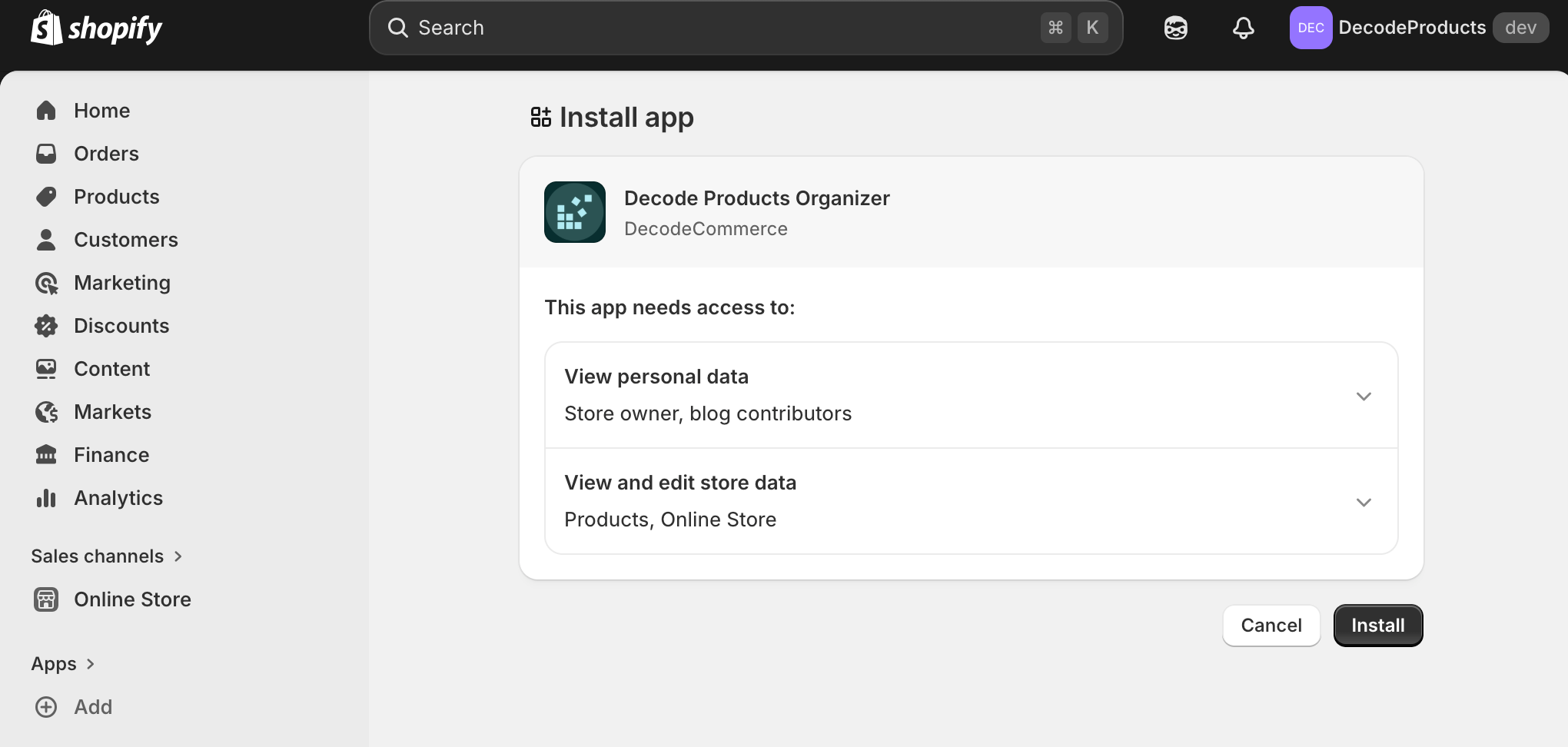
Products Page
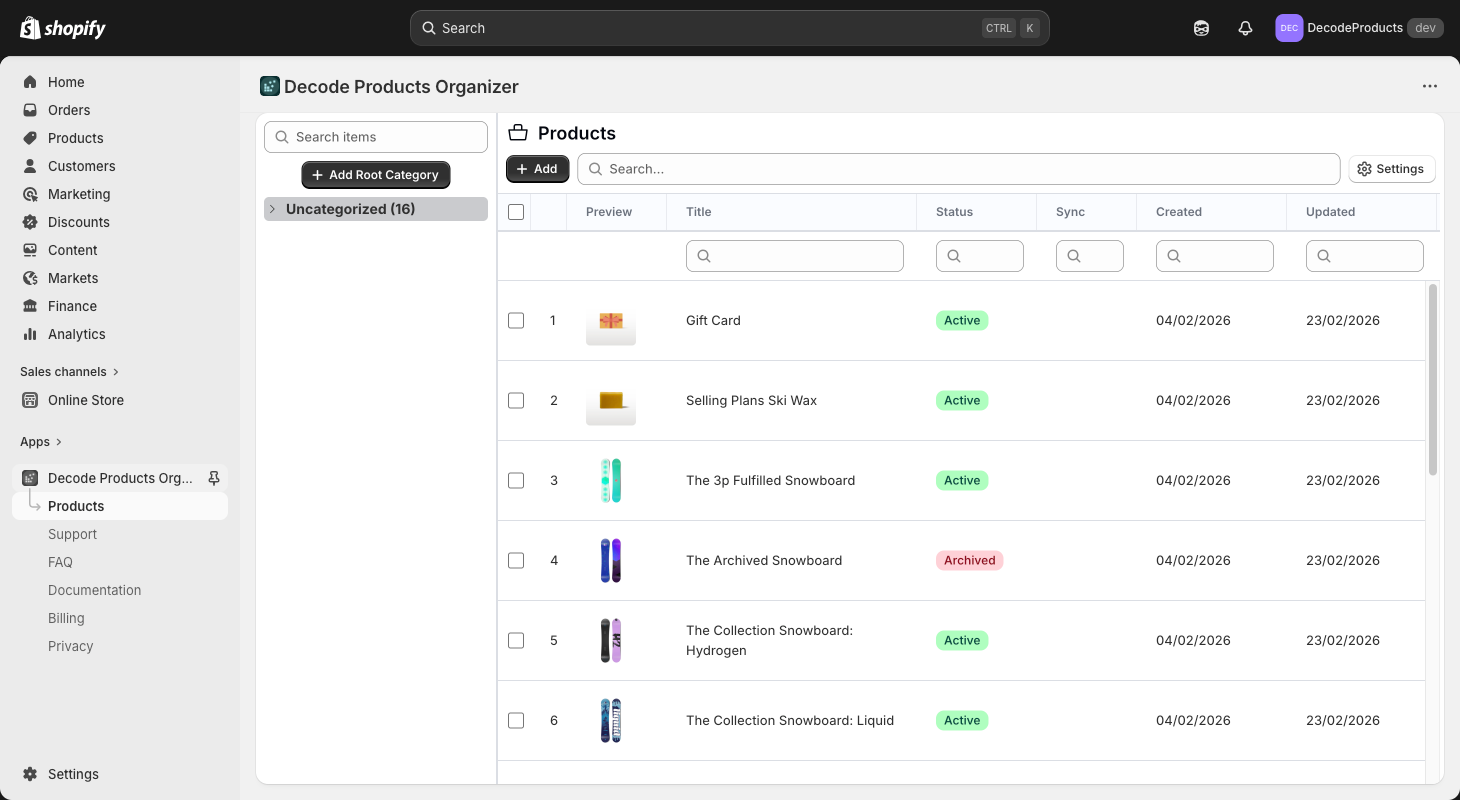
The Products page shows all your Shopify products in a list. You can search and filter to find what you need. Click a row to open a product in a modal to see and edit all its details. In table settings you choose which columns appear and how the list is sorted.
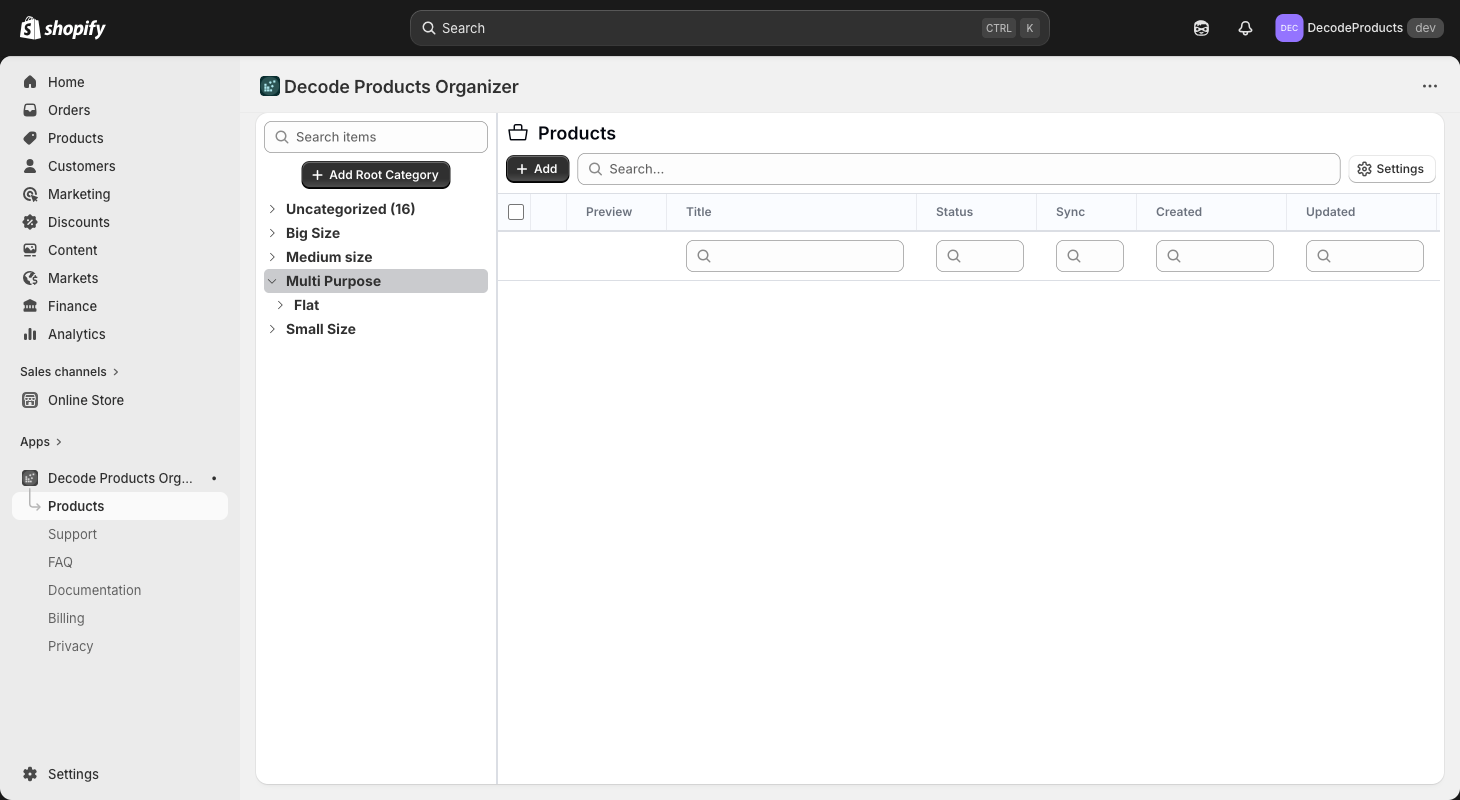
In the Products page sidebar, you can create categories and sub-categories.
the Uncategorized category is always visible and cant be deleted and modified. It will display all the products that are not yet associated to any category.
select the rows and drag and drop to a category in the sidebar to assign products to that category.
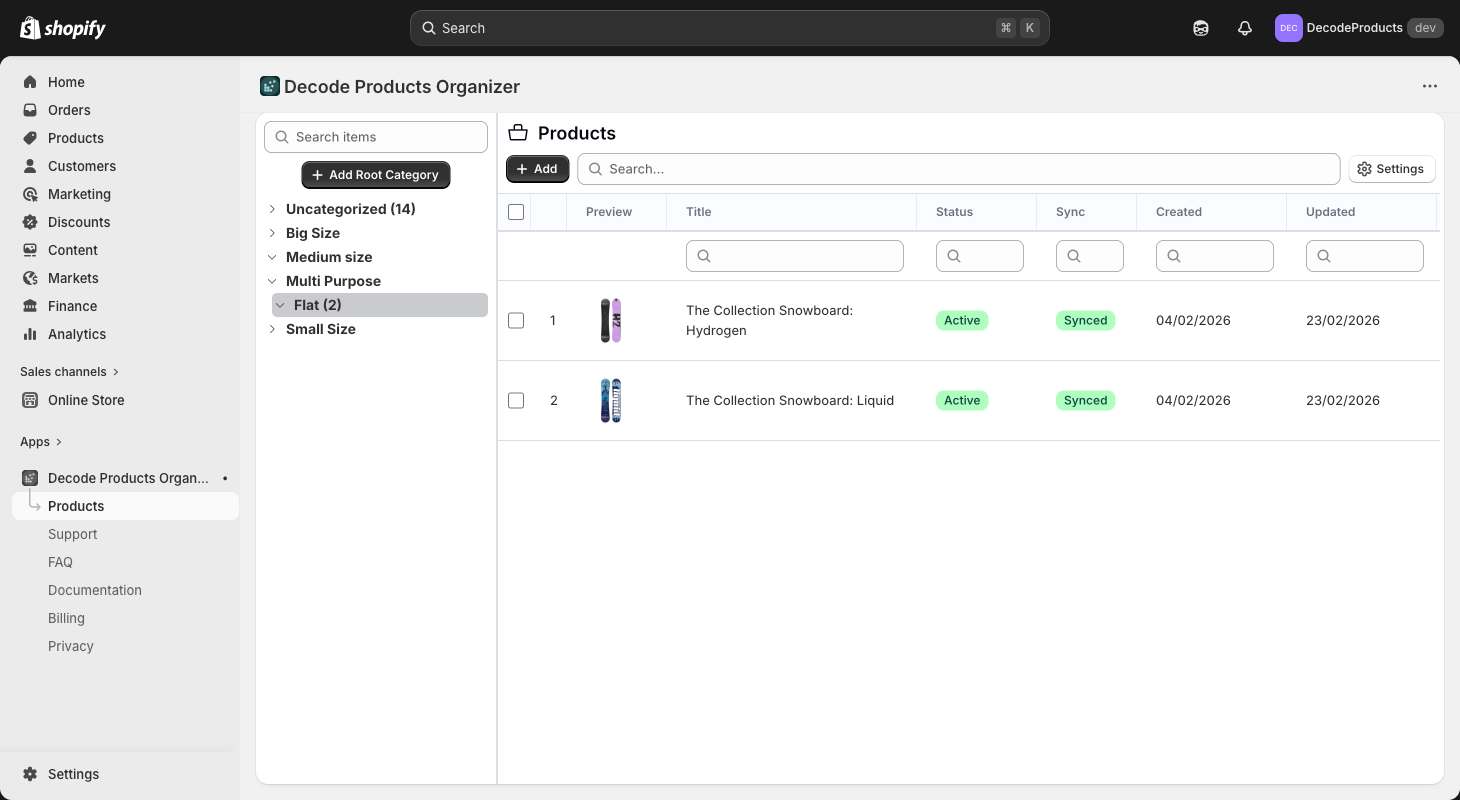
when you move the products to a different category, each products is updated and the associated category name is added as a tag in each products, if a product was already in a different category then previous category tag is removed first before adding a new tag.
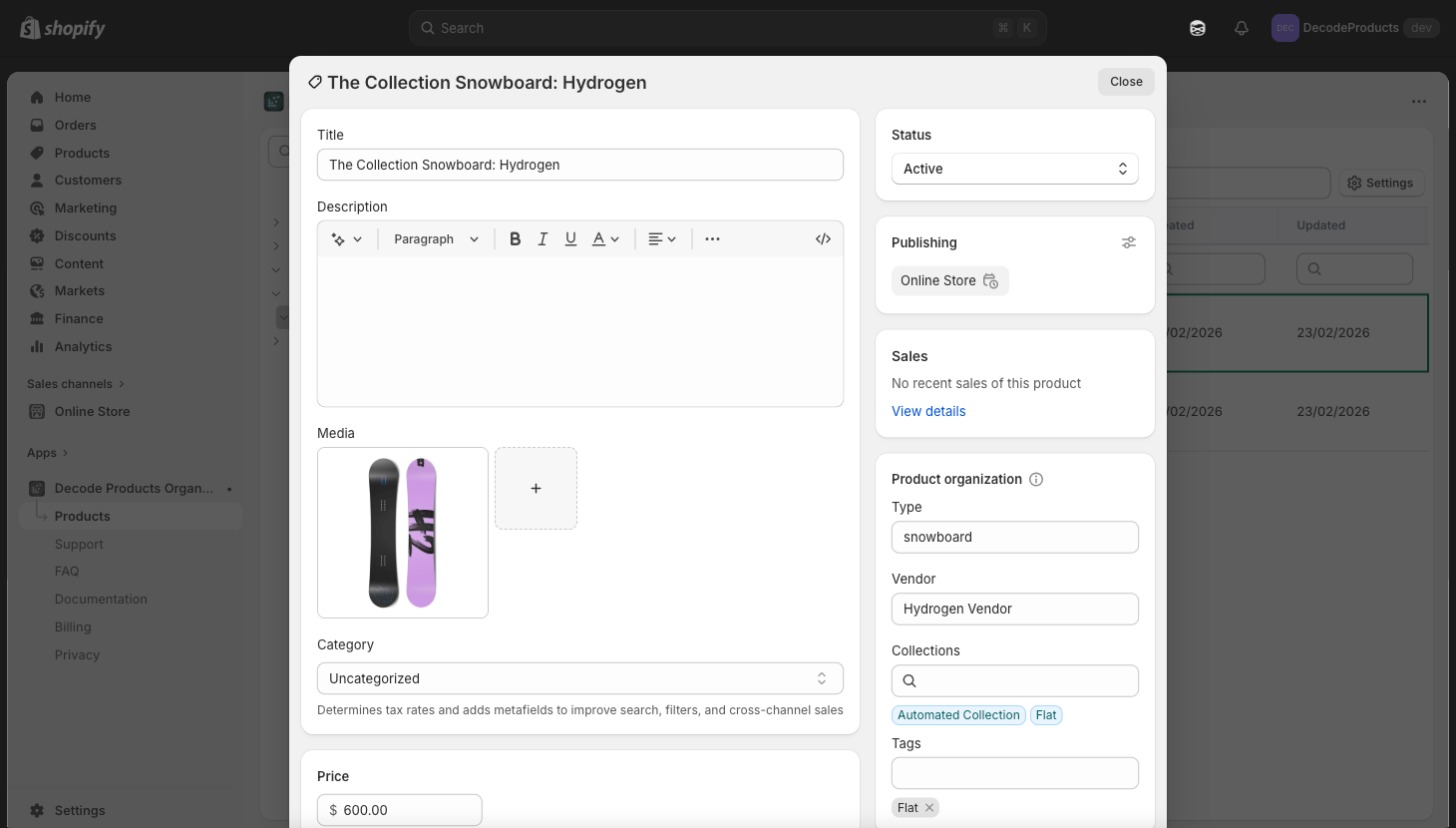
When you create a category, a smart collection is created too in the Shopify that includes all the products that have specific tag.
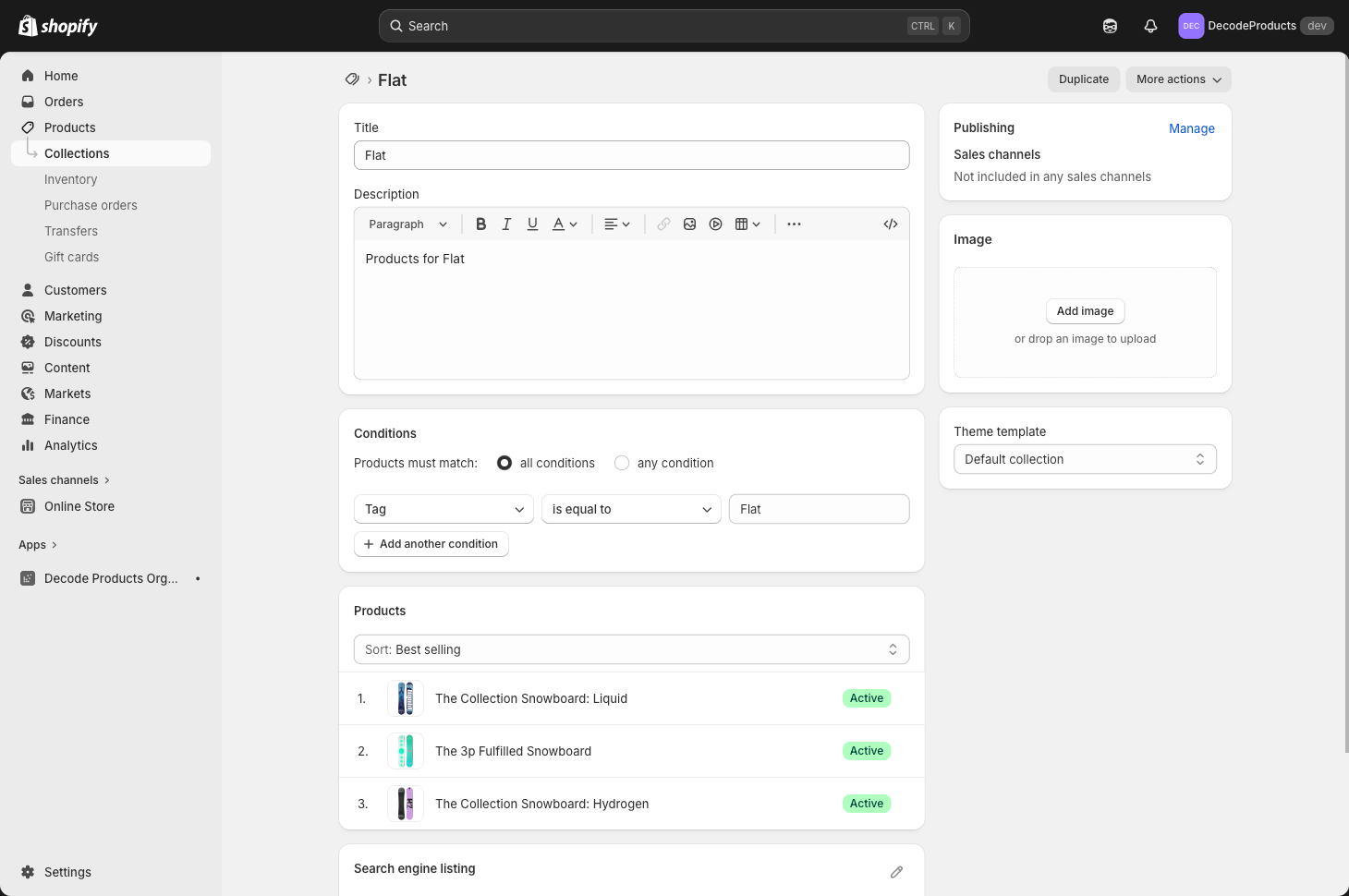
when you rename existing category in the sidebar, the associated Shopify collection is modified too with new name and conditions and each products that have assigned to that category also updated for new category tag name and previous category name tag is removed.
Root level Categories and menus
When you create a new root category, the new menu is also created for that category in the Shopify. When you change or remove a category or a child category, the app updates or removes that part of the menu in Shopify. Any time you create, edit, delete, or move a category, the app keeps the menu in sync. All of this happens in the background so the app stays quick and easy to use.
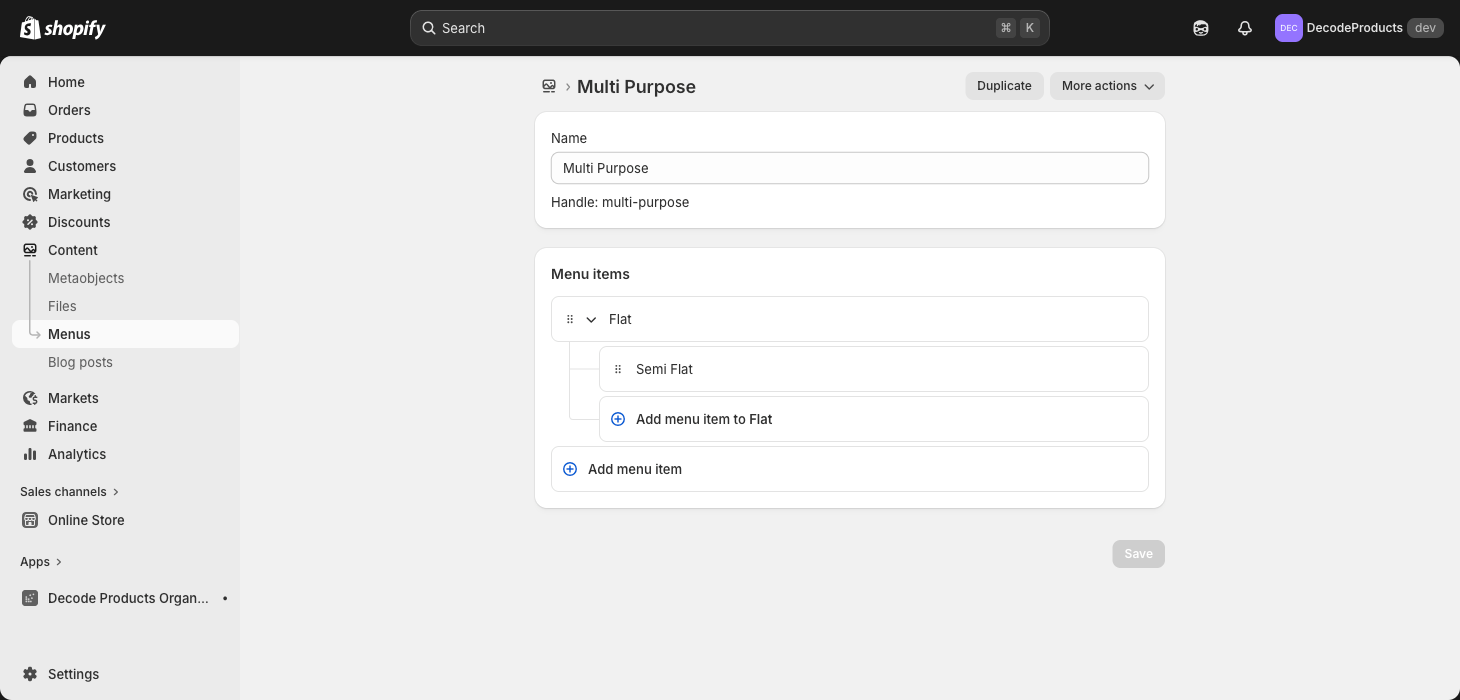
you can use these menus in your theme settings.
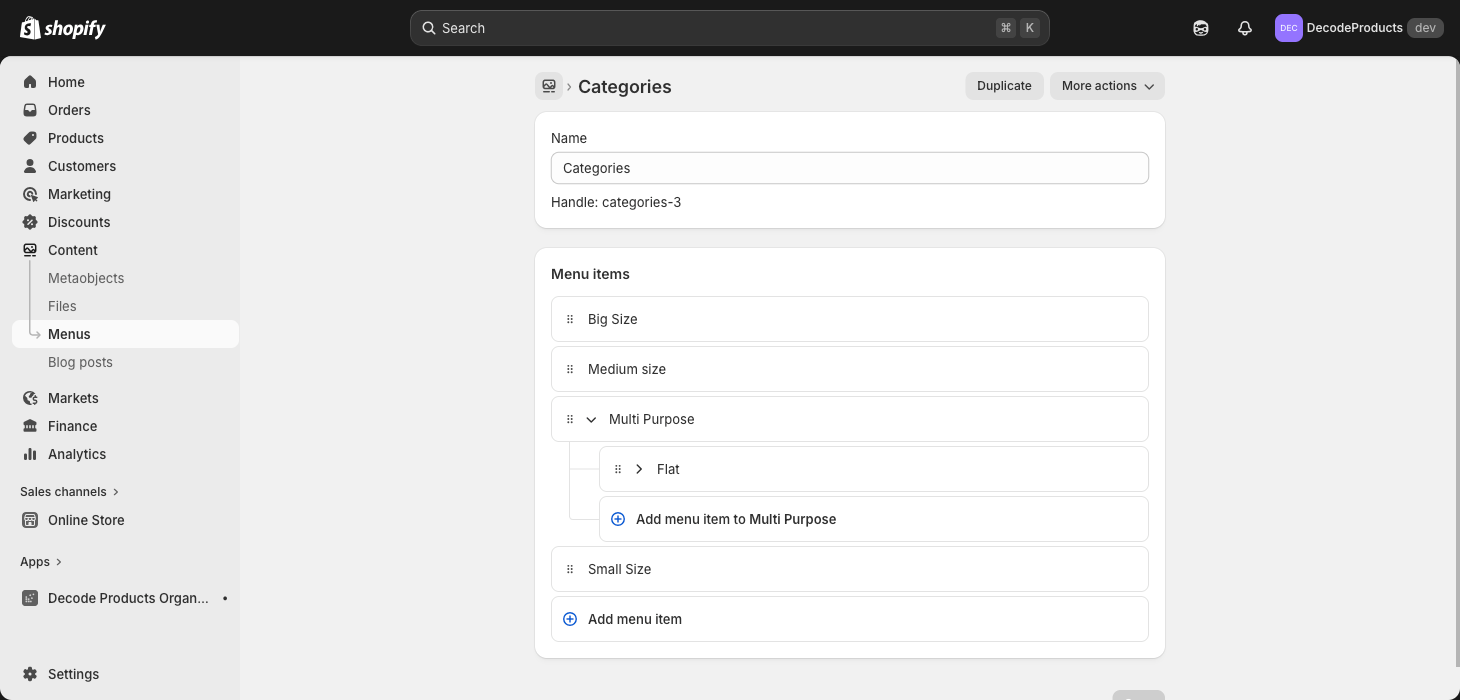
In addition to individual menu for each root category, one special menu Categories is created too which contains everything.
Need more help? Go to Support to send a message to our team. We'll reply in the same thread.